Friday, December 4, 2015

Microsoft BizTalk Server 2006 Configuration

After Installing the Biz Talk server 2006, you must configure it before starting any development. If you have started, you might have encountered the below error when publishing the solution or when selecting the deployment server.


<No BizTalk Configuration database(s) found on server '(LOCAL)'.>

This confirms that the issue is with user access to the database, not with the connection/network issue. If you have already configured the Biz Talk server 2006, You can check the BizTalk admin group in the SQL server where BizTalkMgmtDb exists. In my case, I haven't configured the BTS.

Go to Start à All Programs à Microsoft BizTalk Server 2006 à BizTalk Server Configuration

Note :: You must run the application with Administrative privileges. (Right-click and select run as Administrator)


 You can progress ahead with either Basic Configuration or Custom Configuration. The only point that you have to consider is if the database server is in another server (i.e. not localhost) and the Biz Talk instance have configured before, you have to select the "Custom configuration" option.

Provide NT AUTHORITY\NETWORK SERVICE as the username and click on Configure.


Let's enable all the features.

1. Enterprise Single Sign-On (SSO)


If you are getting the below error on Data Stores,
failed to connect to the sql database ssodb on sql server

Do the below described steps to create the SSO database.

1. Start the Visual Studio command prompt as an Administrator (must)
2. Go to the C:\Program Files\Common Files\Enterprise Single Sign-On directory
3. Run regasm ssosql.dll command
4. Deselect "Enable Enterprise Single Sign-On this computer" and select it again.


Now If you are still getting the below error on Windows Service,
failed to connect to the sql database ssodb on sql server

Do the below-described steps to configure SSO.

Go to Start à All Programs à Microsoft Enterprise Single Sign-On à SSO Administration (run it as an Administrator)


Select the SSO server name and tick Set SSO Server for all users, and click OK.


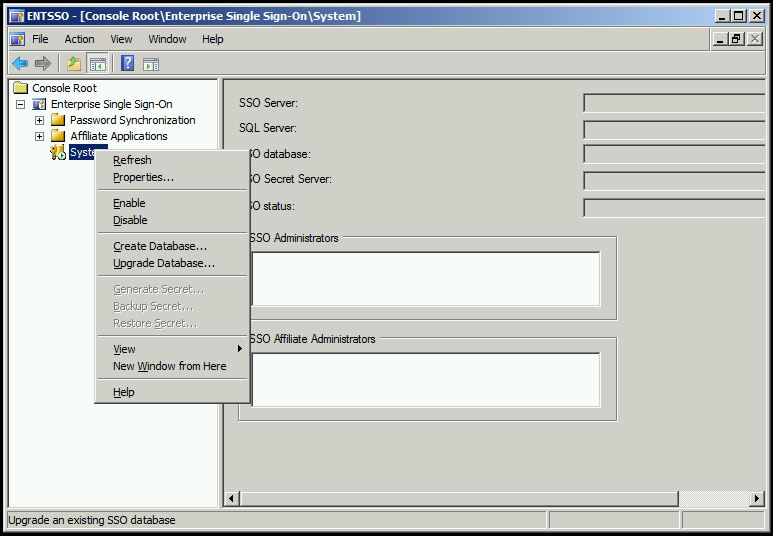
Expand Enterprise Single Sign-On and click on "Create Database"


For security reasons, inbuilt Administrator accounts are not allowed to add. 

(To be continued... )

Thursday, December 3, 2015

Install BizTalk Server 2006

New Start, First let's check for the prerequisites.
  • Microsoft Windows Server 2003 with Service Pack 1
  • IIS 6.0
  • Office Excel 2003 and InfoPath 2003 with service pack 2
  • Visual Studio 2005
  • SQL Server 2005
  • Windows Sharepoint Services 2.0 with Service Pack 3
Some of the other required components are available in here.

The detailed installation guide is located in the 'Installation Guide.html' file inside your installation folder.


Progress with Installation by clicking on "Install". Provide your name and the name of your organization, and on next screen accept the license agreement.


Select what you want to install from the Component Installation wizard step.


The below descriptions have been extracted from the Description box.

> Documentation (46.17 MB):
Selecting the Documentation component installs the core documentation, tutorials, UI reference (F1 help), programmer's reference, and usage instructions for the SDK samples and utilities.

Required components :
+ Microsoft Document Explorer 2005

> Server Run-time (172.84 MB) :
Installs the run-time services for Biz Talk Server 2006. These run-time services are an essential part of the Biz Talk Server platform.

Required components :
+ Enterprise Single Sign-On (SSO) Administration
+ Enterprise Single Sign-On (SSO) Server
+ Microsoft SQL XML 3.0 Service Pack 3
+ Enterprise Single Sign-On Administration
+ Enterprise Single Sign-On Server
+ Microsoft ADO MD.Net 8.0
+ Microsoft ADO MD.Net 8.0 Patch
+ Microsoft ADO MD.Net 9.0

+ Base EDI Adapter (126.58 MB) 
Installs the necessary software that enables Biz Talk Server 2006 to process documents in the Electronic Data Interchange (EDI) format.

> Portal Components (36.32 MB):
Includes set of services used by business people to communicate, collaborate, and reach decisions enabling them to interact, configure, and monitor business processes and workflows.
Required components :
+ Internet Information Services (IIS)
+ Microsoft SQL XML 3.0 Service Pack 3

+ Business Activity Services :
Installs the necessary software that enables information workers to collaborate and manage business processes and trading partners.

Required components :
+ Single Sign-On (SSO) Administration
+ Internet Information Services (IIS) and Windows Sharepoint Services of the same language or language pack as the BizTalk installation

Note : If you have Commerce Server 2002 installed on the system, you must uninstall it or upgrade to Commerce Server 2006 first.

+ Business Activity Monitoring  (17.51 MB):
Installs the necessary software that gives business users a real-time view of their heterogeneous business processes, enabling them to make important business decisions.

Required components :
+ Internet Information Services (IIS)

+ Human Workflow Web Service
This service enables clients to dynamically compose workflow, receive workflow guidance and obtain the latest state of the workflow activities.

Required components :
> Internet Information Services (IIS)

Size of this feature: 4.42 MB

> Administration Tools (51.63 MB):
Installs the necessary software to administer BizTalk Server 2006.

Required components :
+ Enterprise Single Sign-On (SSO) Administration
+ Microsoft ADO MD.Net 9.0 Enterprise Single Sign-On Administration
+ Microsoft SQL XML 3.0 Service Pack 3
+ Microsoft ADO MD.Net 8.0
+ Microsoft ADO MD.Net 8.0 Patch

> Developer Tools and SDK
Developer Tools and SDK component installs samples and utilities that enable the rapid creation of BizTalk Server 2006 solutions. This includes: SDK samples and supporting documentation, BizTalk Explorer, schema and map designers, and Visual Studio .NET project templates.

Required components :
+ Visual Studio .NET 2005.
+ Enterprise Single Sign-On (SSO) Administration.

On the next screen, leave the automatically install redistributable prerequisites from the web.


Click on Install to begin the installation.


Export Query Results from SQL Server Management Studio

SQL Server Management Studio provides three different ways to see the results of your query.

1. Results to grid :


When you click on "Execute", results will be shown on the Results Grid (default behaviour)

2. Results to File :


Switch to this mode by clicking on the  "Results to File" icon. When you click on execute, save results dialogue will appear, and you can save the results as a report file (.rpt).

3. Result to Text :


Switch to this mode by clicking on the  "Results to Text" icon. When you click on execute, results will be displayed on the "Results" tab.


Wednesday, May 27, 2015

How to query last restore date of each data base in SQL Server

Below query shows the last database restore point information.

WITH LastRestores AS
(
SELECT
    DatabaseName = [d].[name],
    [d].[create_date] ,
    [d].[compatibility_level],
    [d].[collation_name] ,
    r.*,
    RowNum = ROW_NUMBER() OVER (PARTITION BY d.Name ORDER BY r.[restore_date] DESC)
FROM master.sys.databases d
LEFT OUTER JOIN msdb.dbo.[restorehistory] r ON r.[destination_database_name] = d.Name
)
SELECT *
FROM [LastRestores]
WHERE [RowNum] = 1

Saturday, February 14, 2015

Connect Visual Studio with Visual Studio Online

From this post, I'll share step by step procedure that you need to follow to get connected with your online TFS account i.e. Visual Studio account

If you need to know more about Visual Studio Online, below URL will be informative for you.
http://www.visualstudio.com/en-us/products/what-is-visual-studio-online-vs.aspx

If you have not yet owned or created a Visual Studio online account, check my previous blog post to get an idea.

First let's take a look at the reverse way.

1. Open up Vs 2013 and Navigate to Team --> Connect to Team Foundation Server....


2. Click on Select Team Projects. "Connect to Team Foundation Server" dialog will appear. Then click on Servers and then on Add to add your online visual studio account url.


3. Add your visual studio online url as below and click OK.


4. You will be prompted to enter your Microsoft account credentials. Once authenticated, you will get a list of team projects which you have access.


5. Click on connect to get connected with your team project. Once this is setup |Team Explorer" side panel will pop-out as below.


Now the easiest one step way. Once you log into the Visual Studio Online account and navigate to the team project, you can easily open-up your team project with visual studio  2013 .