
Monday, June 10, 2024


Thursday, November 10, 2022
Configure the Windows Firewall to Allow SQL Server Access
Problem: A warning message is displayed in SQL Sever 2014 Setup "Install Rules" step.
Rule "Windows Firewall" generated a warning
The Windows firewall is enabled. Make sure the appropriate ports are open to enable remote access. See the rules' documentation at http://go.microsoft.com/fwlink/?LinkId=94001 for information about ports to open for each feature.
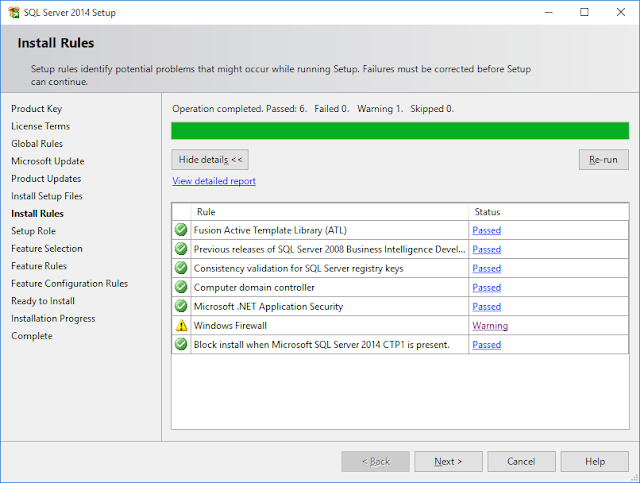

Solution: Needs to open up relevant ports in the Windows firewall. In addition, some other parameters must be set depending on the components installed, the setup scenario, and the version of the SQL server.
SQL Server 2008 R2 Specific Instructions
SQL Server 2014 Specific Instructions
SQL Server 2016 Specific Instructions
Steps: To pass the Installation Rules step of the SQL server 2014 setup, open up port 1433.
1. Go To Windows Firewall

Then click on Advanced Settings in the Allowed Apps window.

Click on Allow another App..
Rule "Windows Firewall" generated a warning
The Windows firewall is enabled. Make sure the appropriate ports are open to enable remote access. See the rules' documentation at http://go.microsoft.com/fwlink/?LinkId=94001 for information about ports to open for each feature.


Solution: Needs to open up relevant ports in the Windows firewall. In addition, some other parameters must be set depending on the components installed, the setup scenario, and the version of the SQL server.
SQL Server 2008 R2 Specific Instructions
SQL Server 2014 Specific Instructions
SQL Server 2016 Specific Instructions
Steps: To pass the Installation Rules step of the SQL server 2014 setup, open up port 1433.
1. Go To Windows Firewall

Then click on Advanced Settings in the Allowed Apps window.

Click on Allow another App..
Create a basic Virtual Machine using Azure CLI
First, create a resource group
> az group create \
--name MyResourceGroup \
--location CentralUS \
--tags MyTag
--name MyResourceGroup \
--location CentralUS \
--tags MyTag
Then create the VM and provide the resource group created in the above step
> az vm create \
--name MyFirstVM \
--resource-group MyResourceGroup \
--image Win2016Datacenter \
--admin-username Hasitha \
--admin-password Password*1234 \
--size Standard_D2ads_v5 \
--public-ip-sku basic \
--os-disk-size-gb 128
Tuesday, October 18, 2022
Troubleshooting MSI Installer
msiexec /i my_installer.msi /l*v install.log
This will create an install.log file on the same folder and should include more detailed info about what went wrong.
Wednesday, November 4, 2020
C# Convert Time Zone Value
 DateTime nzTime = new DateTime(System.DateTime.Now.Year, System.DateTime.Now.Month,
                System.DateTime.Now.Day,
                System.DateTime.Now.Hour,
                System.DateTime.Now.Minute,
                System.DateTime.Now.Second);

             string lkZoneId = "Sri Lanka Standard Time";

             Console.WriteLine($"The date and time value for {lkZoneId} :
{TimeZoneInfo.ConvertTimeBySystemTimeZoneId(nzTime, lkZoneId)}");
Thursday, October 8, 2020
Text to Speech using Google TTS APIs
using Google.Cloud.TextToSpeech.V1;
using System;
using System.IO;
using System.Linq;
using System.Threading;

namespace QuickStart
{
    class Program
    {
        static void Main(string[] args)
        {
            // Check whether the environment variable exists.
            var value = Environment.GetEnvironmentVariable(@"GOOGLE_APPLICATION_CREDENTIALS");
            // If necessary, create it.
            if (value == null)
            {
                Environment.SetEnvironmentVariable("GOOGLE_APPLICATION_CREDENTIALS", @"C:\Google\My First Project-22f4c7c8ac46.json");

                // Now retrieve it.
                value = Environment.GetEnvironmentVariable("GOOGLE_APPLICATION_CREDENTIALS");
            }

            GetListOfVoices();

            // Instantiate a client
            TextToSpeechClient client = TextToSpeechClient.Create();

            // Set the text input to be synthesized.
            SynthesisInput input = new SynthesisInput
            {
                Text = "hi!!!!......    it's a nice day"
            };

            // Build the voice request, select the language code ("en-US"),
            // and the SSML voice gender ("neutral").
            VoiceSelectionParams voice = new VoiceSelectionParams
            {
                LanguageCode = "en-IN",
                SsmlGender = SsmlVoiceGender.Male,
                Name = "en-IN-Wavenet-C"
            };

            // Select the type of audio file you want returned.
            AudioConfig config = new AudioConfig
            {
                AudioEncoding = AudioEncoding.Linear16
            };

            // Perform the Text-to-Speech request, passing the text input
            // with the selected voice parameters and audio file type
            var response = client.SynthesizeSpeech(new SynthesizeSpeechRequest
            {
                Input = input,
                Voice = voice,
                AudioConfig = config,
            });

            // Write the binary AudioContent of the response to an Wave file.
            string outPutFile = @"C:\Google\ItsaNiceDay.wav";
            using (Stream output = File.Create(outPutFile))
            {
                response.AudioContent.WriteTo(output);
                Console.WriteLine($"Audio content written to file '{outPutFile}'");
            }


            new Thread(() => {
                System.Media.SoundPlayer player = new System.Media.SoundPlayer(outPutFile);
                player.Play();
            }).Start();

            Console.ReadLine();
        }

        static void GetListOfVoices()
        {
            // Create client
            TextToSpeechClient textToSpeechClient = TextToSpeechClient.Create();
            // Initialize request argument(s)
            ListVoicesRequest request = new ListVoicesRequest { LanguageCode = "", };
            // Make the request
            var response = textToSpeechClient.ListVoices(request);

            Console.WriteLine("List of voices supported");

            response.Voices.ToList().ForEach( v => Console.WriteLine($"Name:{v.Name} Gender:{v.SsmlGender}, LanguageCodes:{v.LanguageCodes}"));

        }
    }
}
Thursday, September 24, 2020
Search for a Value in a given SQL Database
USE <MyDatabase>

DECLARE @SearchStr NVARCHAR(100)

SET @SearchStr = 'Text I want to Search'

CREATE TABLE #results
  (
     columnname  NVARCHAR(370),
     columnvalue NVARCHAR(3630)
  )

SET nocount ON

DECLARE @TableName  NVARCHAR(256),
        @ColumnName NVARCHAR(128),
        @SearchStr2 NVARCHAR(110)

SET @TableName = ''
SET @SearchStr2 = Quotename('%' + @SearchStr + '%', '''')

WHILE @TableName IS NOT NULL
  BEGIN
      SET @ColumnName = ''
      SET @TableName = (SELECT Min(Quotename(table_schema) + '.'
                                   + Quotename(table_name))
                        FROM   information_schema.tables
                        WHERE  table_type = 'BASE TABLE'
                               AND Quotename(table_schema) + '.'
                                   + Quotename(table_name) > @TableName
                               AND Objectproperty(Object_id(Quotename(
                                                            table_schema
                                                            ) +
                                                            '.'
                                                            + Quotename(
                                                            table_name
                                                            )),
                                   'IsMSShipped') =
                                   0)

      WHILE ( @TableName IS NOT NULL )
            AND ( @ColumnName IS NOT NULL )
        BEGIN
            SET @ColumnName = (SELECT Min(Quotename(column_name))
                               FROM   information_schema.columns
                               WHERE  table_schema = Parsename(@TableName, 2)
                                      AND table_name = Parsename(@TableName, 1)
                                      AND data_type IN ( 'char', 'varchar',
                                                         'nchar',
                                                         'nvarchar',
                                                         'int', 'decimal' )
                                      AND Quotename(column_name) > @ColumnName)

            IF @ColumnName IS NOT NULL
              BEGIN
                  INSERT INTO #results
                  EXEC ( 'SELECT ''' + @TableName + '.' + @ColumnName +
                  ''', LEFT(' +
                  @ColumnName
                  + ', 3630) FROM ' + @TableName + ' (NOLOCK) ' + ' WHERE ' +
                  @ColumnName +
                  ' LIKE ' + @SearchStr2 )
              END
        END
  END

SELECT columnname,
       columnvalue
FROM   #results

DROP TABLE #results
Sunday, August 23, 2020
Creating first Blazor app with Experimental Mobile Blazor Bindings and Blazor Hybrid templates
MSDN Article as of mid of 2020: https://docs.microsoft.com/en-us/mobile-blazor-bindings/get-started
I have noticed that installing the project templates is slightly different from what is mentioned in the above article.
Using mobileblazorbindings template
dotnet new mobileblazorbindings -o MyMobileBlazorApp
Using blazorhybrid template
dotnet new blazorhybrid -o MyHybridApp
Preview - Windows App

Subscribe to:
Posts (Atom)